Skip to content

Jupyter Notebook on Vega

Jupyter Notebook (formerly IPython Notebooks) is a web-based interactive computational environment for creating notebook documents.

This guide covers two ways to access a Jupyter Notebook instance running on Vega: via an SSH tunnel or via VSCode.


Overview

  1. Allocate a node for an interactive session
  2. Connect to the allocated node
  3. Start Jupyter Notebook
  4. Create a tunnel to your local machine and open it in a browser

Step 1: Allocate a node

The command below allocates a single GPU node with 1 GPU and 40 GB of memory for 4 hours. Adjust as needed.

salloc -n 1 --gres=gpu:1 --mem=40G --partition=gpu -t 4:00:00

The output will show which GPU node has been assigned — in this example, gn03.

[user@vglogin0005 ~]$ salloc -n 1 --gres=gpu:1 --mem=40G --partition=gpu -t 4:00:00
salloc: Pending job allocation 24529170
salloc: job 24529170 queued and waiting for resources
salloc: job 24529170 has been allocated resources
salloc: Granted job allocation 24529170
salloc: Waiting for resource configuration
salloc: Nodes gn03 are ready for job
[user@gn03 ~]$

Step 2: Connect to the allocated node

SSH tunnel

ssh gnXX

Replace gnXX with the name of the compute node allocated to your job, for example:

ssh gn03

VSCode

Use the following command instead, which sets up port forwarding at the same time:

ssh -L 7000:gn03:7000 gn03

Replace gn03 with your allocated node and 7000 with your preferred port.

Note: The first port is the one your local machine (and login node) will listen on; the second must match the port you will use to run Jupyter on the allocated node.

The output below confirms a successful connection to gn03:

The authenticity of host 'gn03 (<no hostip for proxy command>)' can't be established.
ECDSA key fingerprint is SHA256:Tso0v66J1JxJ/sgsbP8zAyVWhbfO9BzFsapna1tHFrc.
Are you sure you want to continue connecting (yes/no/[fingerprint])? yes
Warning: Permanently added 'gn03' (ECDSA) to the list of known hosts.
[user@gn03 ~]$

Step 3: Start Jupyter Notebook

You must have Python and the jupyter-notebook package available. Choose one of the two options below.

Option A — Load the Anaconda3 module (Python and Jupyter pre-installed):

module load Anaconda3

Note: any additional Python packages you need must still be installed separately.

Option B — Use your own virtual environment (recommended if you have existing packages):

source venv/bin/activate

Your installed packages will be available to the Jupyter kernel automatically.

Then start Jupyter Notebook, replacing 7000 and gn03 with your chosen port and node:

jupyter-notebook --port=7000 --ip=gn03 --no-browser

You should see output similar to the following:


  _   _          _      _
 | | | |_ __  __| |__ _| |_ ___
 | |_| | '_ \/ _` / _` |  _/ -_)
  \___/| .__/\__,_\__,_|\__\___|
       |_|

Read the migration plan to Notebook 7 to learn about the new features and the actions to take if you are using extensions.

https://jupyter-notebook.readthedocs.io/en/latest/migrate_to_notebook7.html

Please note that updating to Notebook 7 might break some of your extensions.

[W 15:24:32.146 NotebookApp] Loading JupyterLab as a classic notebook (v6) extension.
[W 2026-06-16 15:24:32.150 LabApp] 'port' has moved from NotebookApp to ServerApp. This config will be passed to ServerApp. Be sure to update your config before our next release.
[W 2026-06-16 15:24:32.150 LabApp] 'ip' has moved from NotebookApp to ServerApp. This config will be passed to ServerApp. Be sure to update your config before our next release.
[W 2026-06-16 15:24:32.150 LabApp] 'ip' has moved from NotebookApp to ServerApp. This config will be passed to ServerApp. Be sure to update your config before our next release.
[W 2026-06-16 15:24:32.150 LabApp] 'ip' has moved from NotebookApp to ServerApp. This config will be passed to ServerApp. Be sure to update your config before our next release.
[I 2026-06-16 15:24:32.152 LabApp] JupyterLab extension loaded from /cvmfs/sling.si/modules/el7/software/Anaconda3/2023.07-2/lib/python3.11/site-packages/jupyterlab
[I 2026-06-16 15:24:32.152 LabApp] JupyterLab application directory is /cvmfs/sling.si/modules/el7/software/Anaconda3/2023.07-2/share/jupyter/lab
[I 15:24:33.951 NotebookApp] Serving notebooks from local directory: /cephhome/vilecv
[I 15:24:33.951 NotebookApp] Jupyter Notebook 6.5.4 is running at:
[I 15:24:33.951 NotebookApp] http://localhost:7000/?token=8716b889864837a6f50d066560061b321a1f902e74f7d21c
[I 15:24:33.951 NotebookApp]  or http://127.0.0.1:7000/?token=8716b889864837a6f50d066560061b321a1f902e74f7d21c
[I 15:24:33.951 NotebookApp] Use Control-C to stop this server and shut down all kernels (twice to skip confirmation).
[C 15:24:33.972 NotebookApp] 

    To access the notebook, open this file in a browser:
        file:///cephhome/vilecv/.local/share/jupyter/runtime/nbserver-3942355-open.html
    Or copy and paste one of these URLs:
        http://localhost:7000/?token=8716b889864837a6f50d066560061b321a1f902e74f7d21c
     or http://127.0.0.1:7000/?token=8716b889864837a6f50d066560061b321a1f902e74f7d21c

Note: find the URL and token at the bottom — you will need these in the next step.


Step 4: Create a tunnel and open Jupyter in your browser

You now need to forward the port from the compute node to your local machine. Follow the instructions for your operating system or client below.

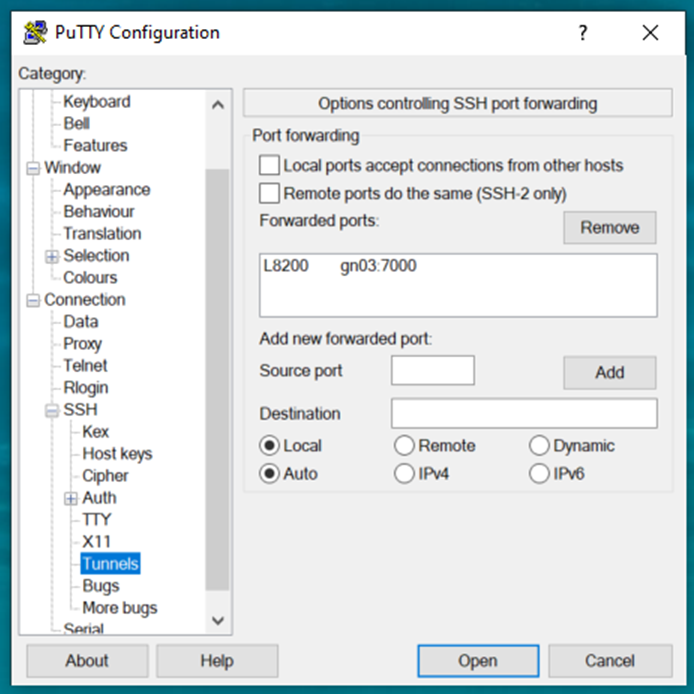
Windows (PuTTY)

In the PuTTY tunnel configuration, add:

  • Source port: 7000
  • Destination: gn03:7000
PuTTY configuration tunnels

VSCode

Clicking the link in the Jupyter output should automatically forward the port.

If you used a custom port in the ssh -L command (the first port, <local-port> in ssh -L <local-port>:gn03:7000), you can set it manually in the Ports tab in VSCode (located in the top left of the terminal window).

Linux and macOS

In a separate terminal run the following command on your local machine, replacing gnXX, 7000, and your-username as appropriate:

ssh -N -f -L 7000:gnXX:7000 your-username@vglogin0005.vega.izum.si

Step 5: Open Jupyter in your browser

Open your browser and navigate to:

http://localhost:7000/?token=<your-token>

Replace <your-token> with the token shown in the Jupyter output from Step 3.


For more information, see the Jupyter Notebook documentation.